Managing variables in a design system: a three-layer structure for products with dark mode

I once opened a design system file and found the same gray typed in by hand in more than a dozen places, each a few hex codes off. Rebranding meant fixing every layer one by one. Figma variables exist to end that, but only if you organize them on purpose. This post is how I build and manage variables for a mobile product design system with dark mode, along with the conventions I think are worth keeping.
Start with the file structure, not the colors
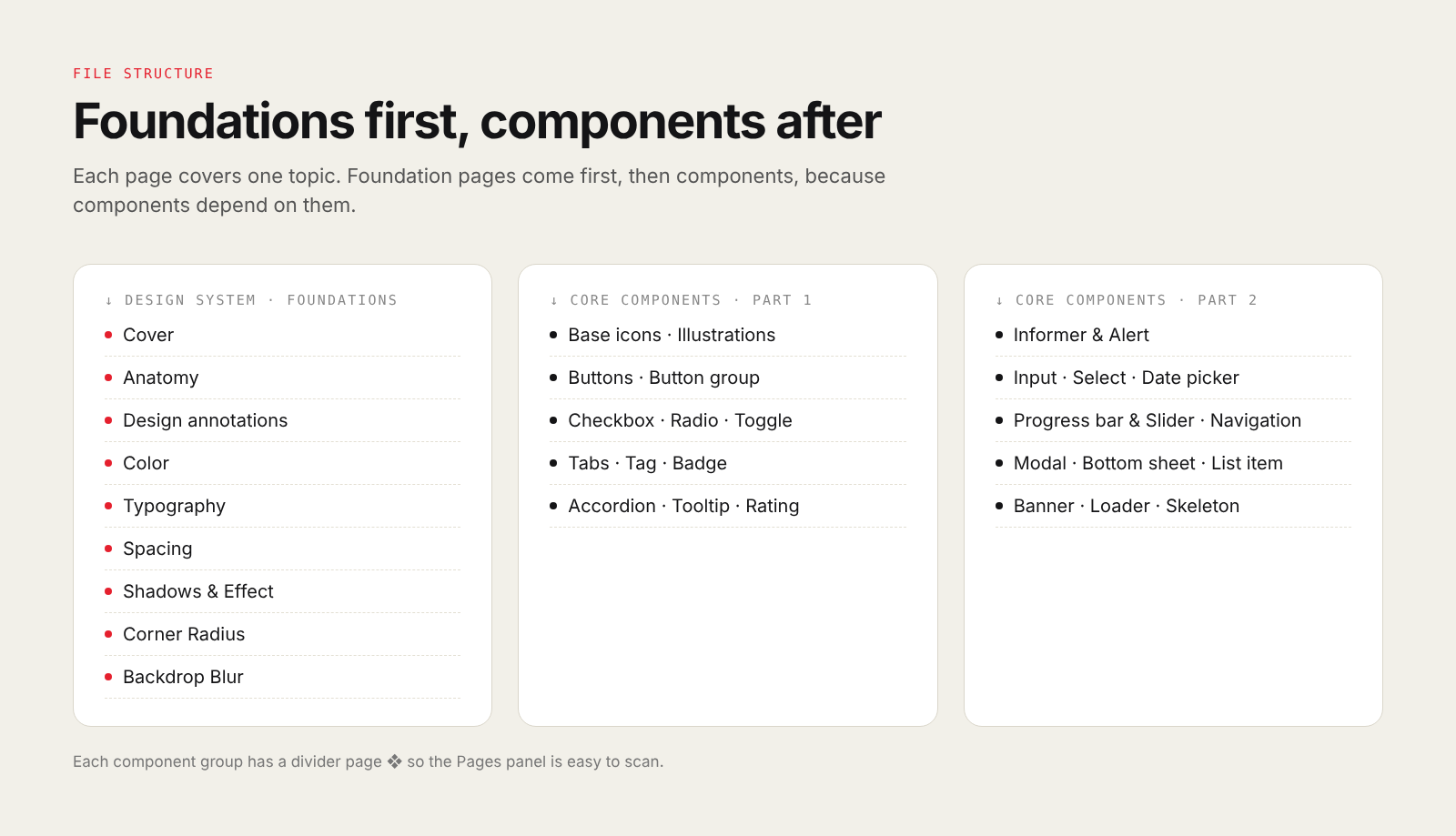
Before creating any variable, I organize the file. The foundation pages come first: Color, Typography, Spacing, Corner Radius, Shadows, Backdrop Blur, plus Anatomy and Design annotations. Core Components follow, grouped with divider pages so the Pages panel is easy to scan.
This order is not just for looks. Components depend on foundations, so putting foundations first reminds the whole team that when a component needs changing, you look up first to see whether the tokens are enough.
Layer 1: Primitives, raw colors with no meaning
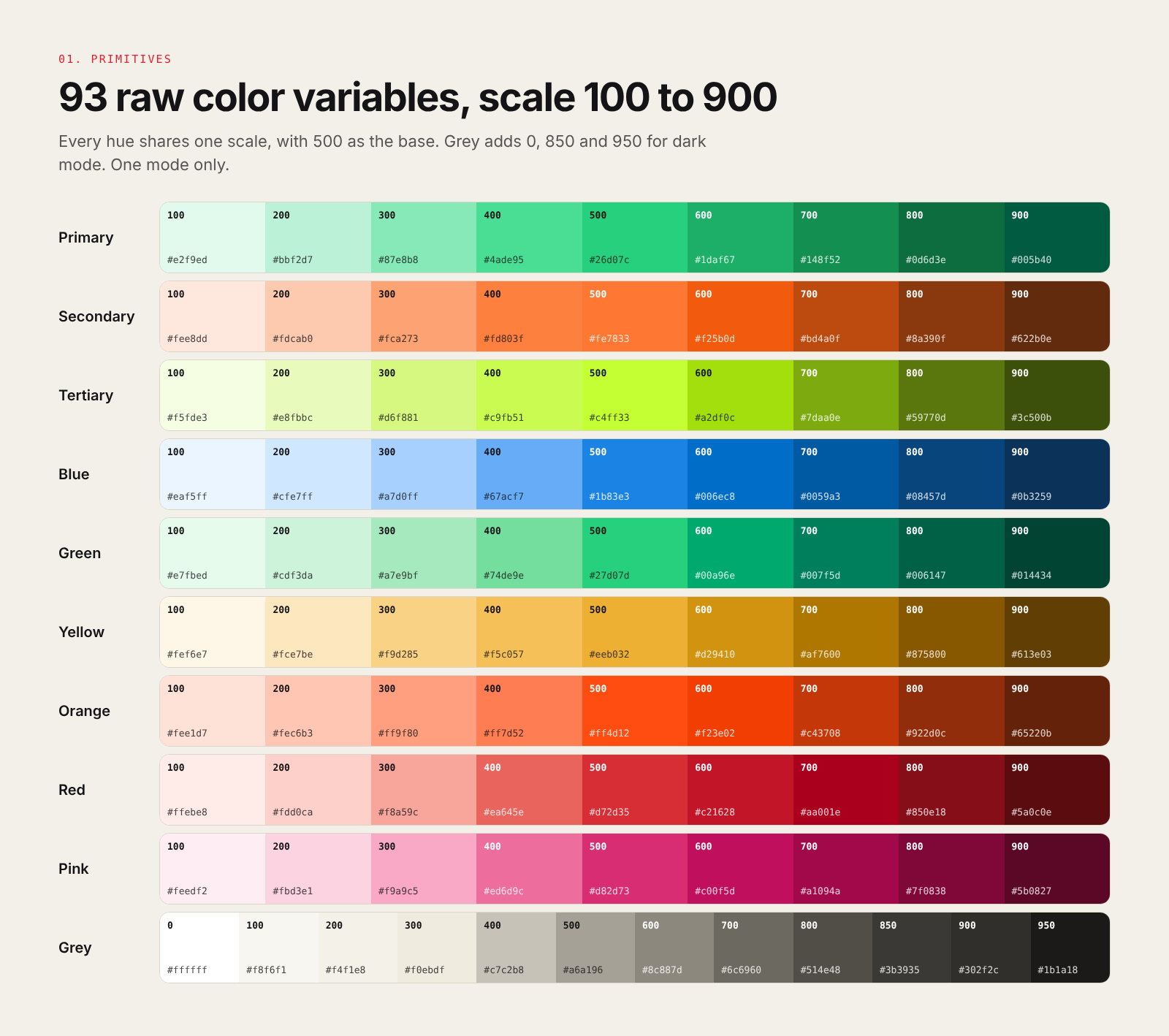
The first collection holds raw values only. Each hue has a scale from 100 to 900, with 500 as the base color. Grey alone adds 0, 850 and 950 because dark mode needs more dark steps. This collection has a single mode and one rule: designers never bind primitives directly to components.
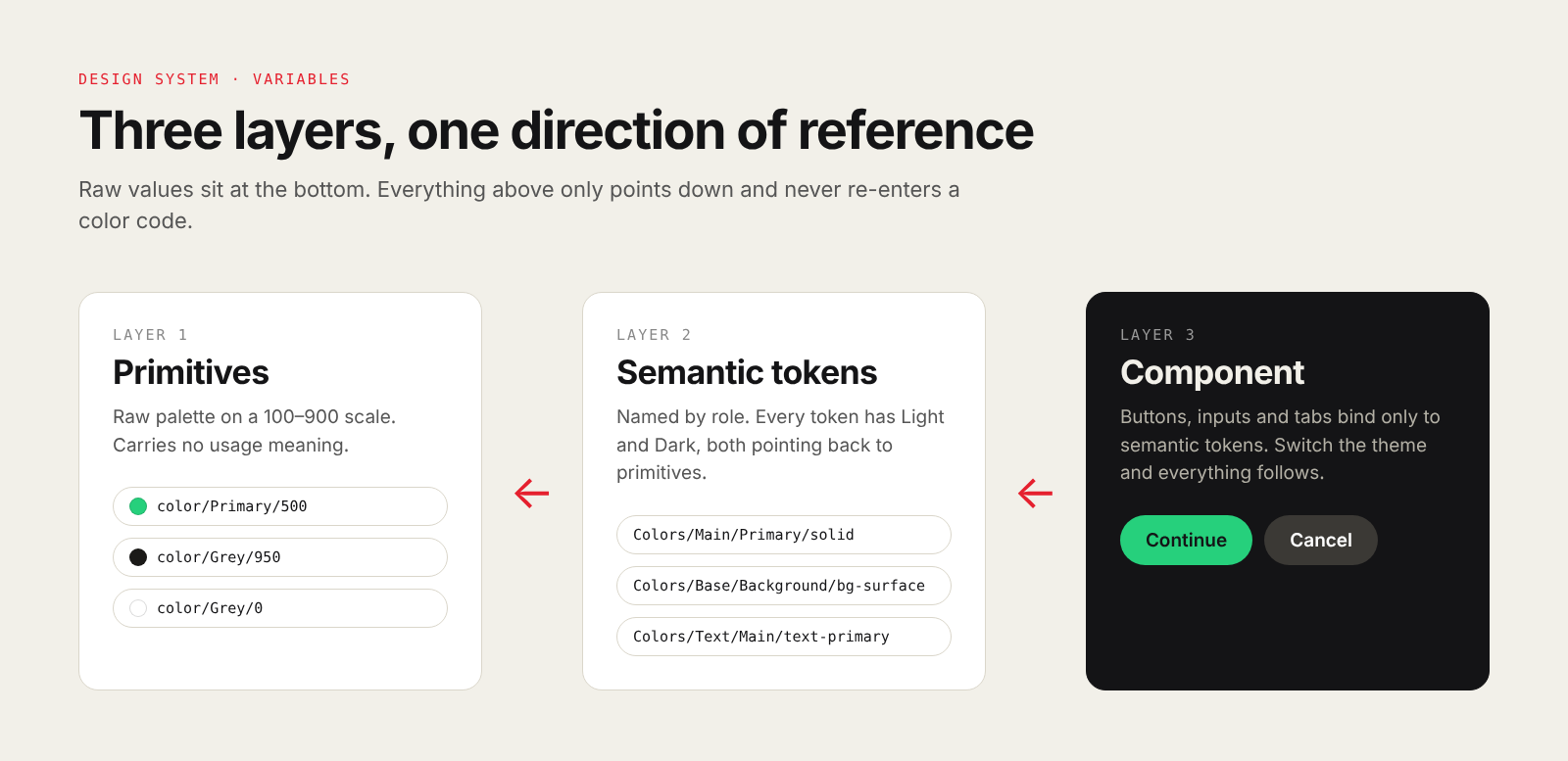
A name like color/Primary/500 tells you what the color is, but not where to use it. The question of "where to use it" belongs to the next layer.
Layer 2: Semantic tokens, named by role
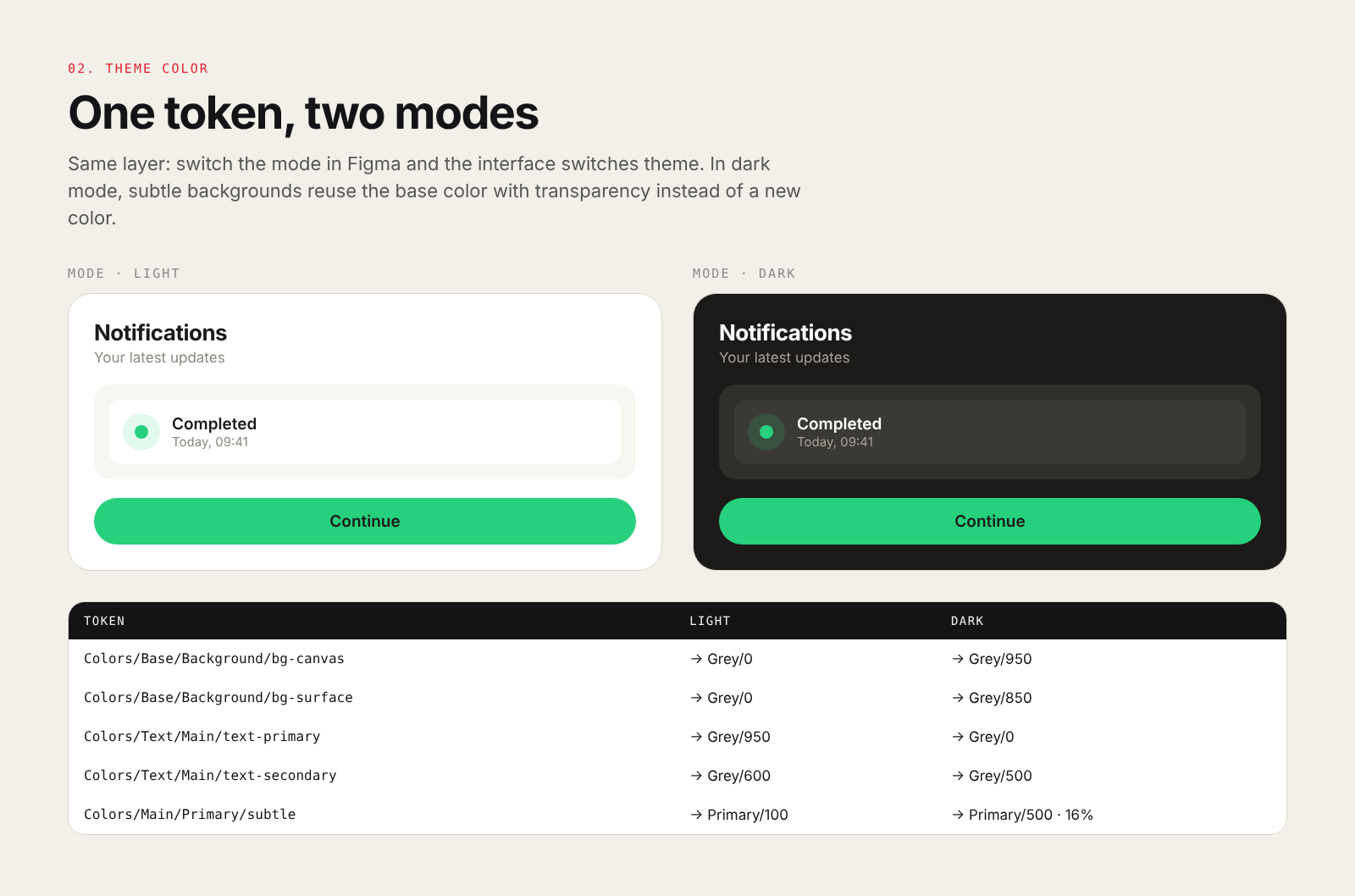
This is the most important layer. Each token describes a role: bg-surface, text-secondary, icon-disabled, stroke-brand-primary. This collection has two modes, Light and Dark, and each mode points to a different primitive.
A few things I found useful when building dark mode:
- The more a stacked background rises, the lighter it gets. Canvas uses Grey/950, container uses Grey/900, surface uses Grey/850 and secondary surface uses Grey/800.
- Light
subtlebackgrounds do not need a new color. In dark mode I reuse the base color at roughly 15 to 20 percent opacity. - Status colors go one step darker: for example, Error uses Red/500 in Light and Red/600 in Dark so it does not glare on a dark background.
That way a button only needs to bind to Colors/Main/Primary/solid. Switch the layer from Light to Dark and everything changes automatically.
One job per collection
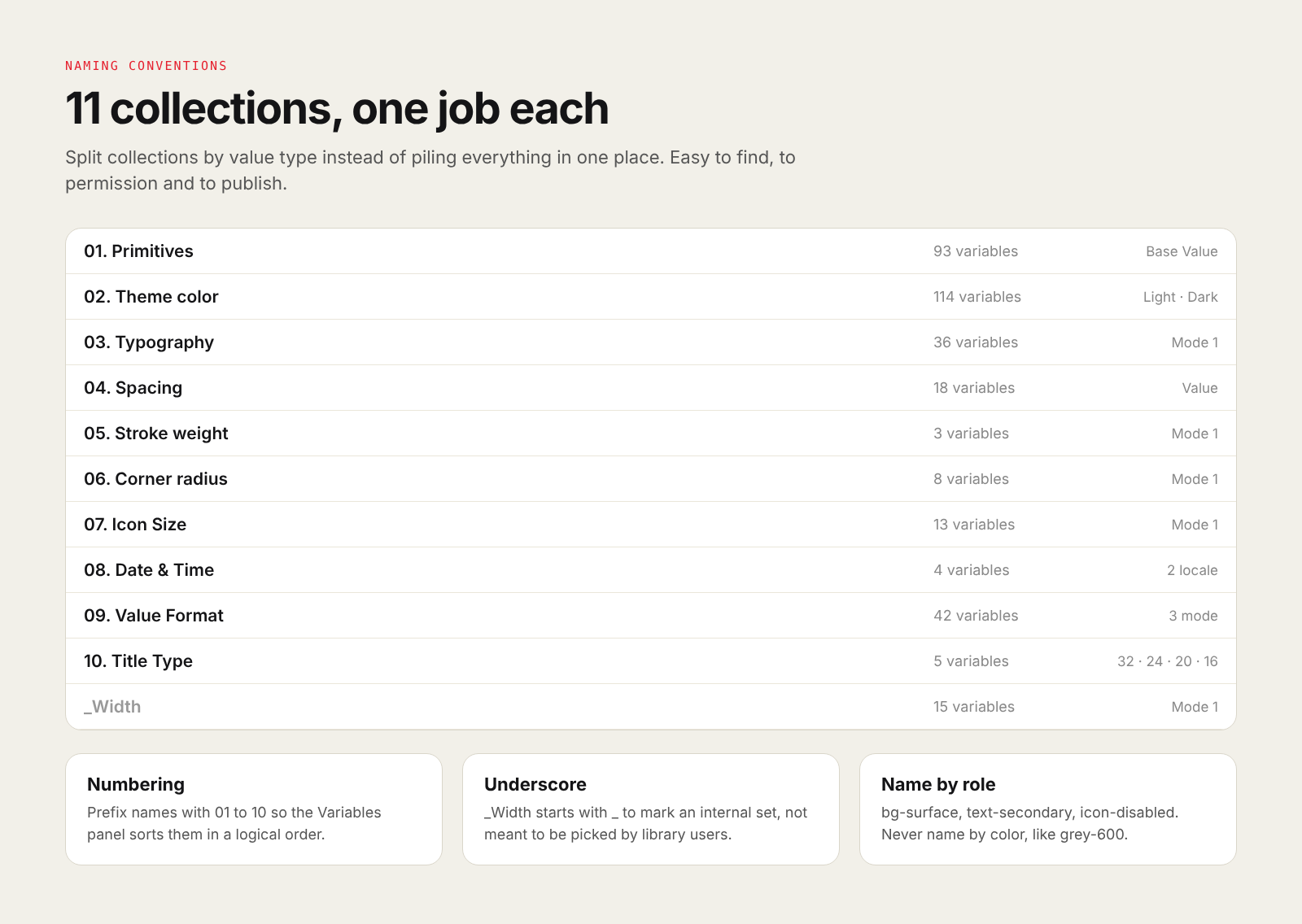
I split variables into several collections instead of putting everything into one. Each collection holds exactly one type of value: raw colors, theme colors, typography, spacing, stroke, radius, icon size, date and time formats, data formats and title styles. This has three benefits: it is easy to find things, easy to control who can edit, and easy to publish in parts.
Three small conventions keep the Variables panel tidy:
- Prefix names with 01 to 10 so Figma sorts them in the right order.
- A collection that starts with an underscore is an internal set, not meant for library users to pick.
- Name by role (
text-secondary), not by color (grey-600). When the color changes, the name stays correct.
Number scales are variables too
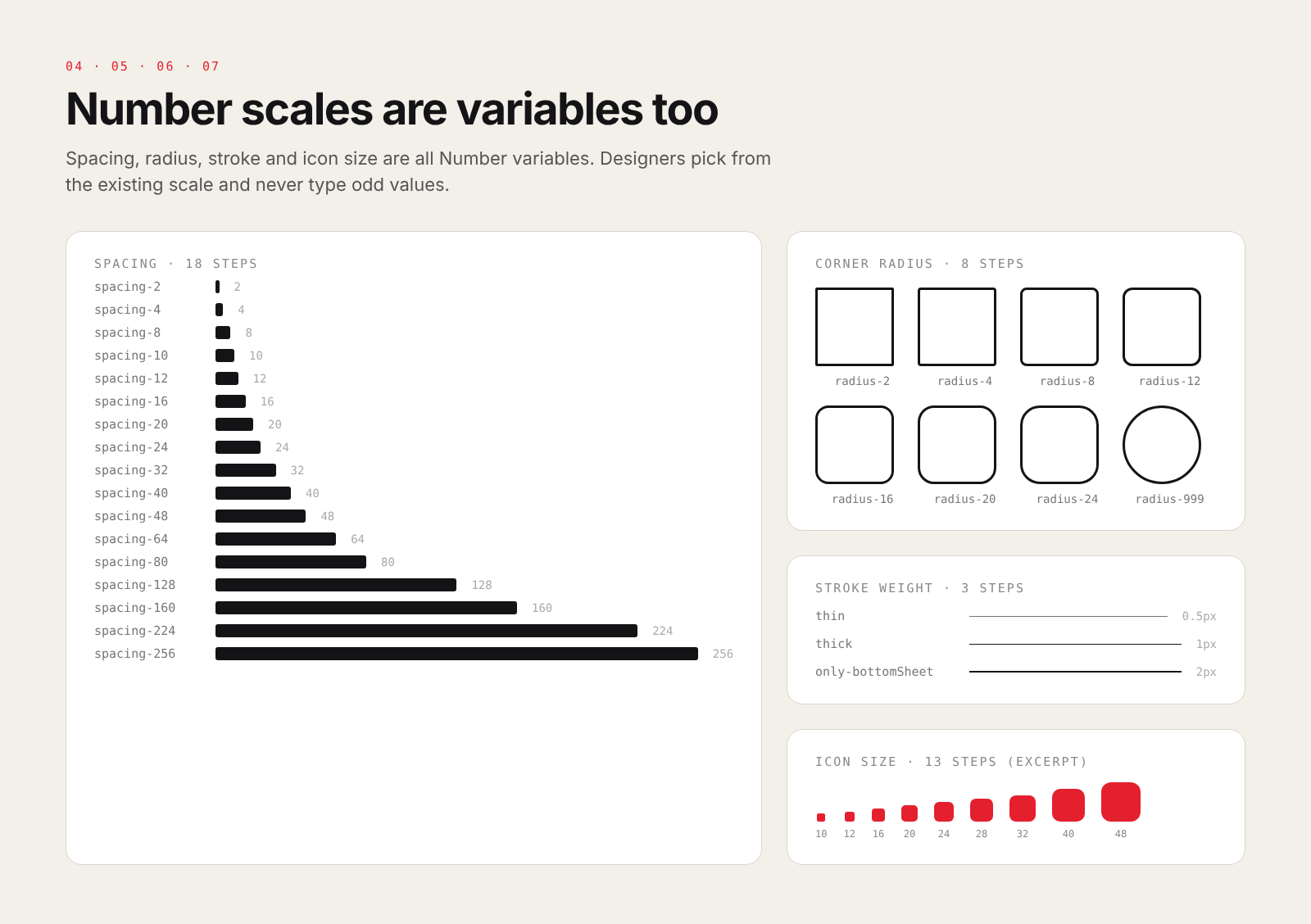
Not just colors. Spacing, corner radius, stroke weight and icon size are all Number variables. Spacing has 18 steps from 0 to 256, radius has 8 steps up to 999 for circles, stroke has 3 steps, and icon size has 13 steps from 10 to 128.
The biggest benefit is discipline: designers pick from an existing scale instead of typing odd numbers like 13 or 22. To change the feel of the whole product, for example softer corners, you change a few radius variables instead of editing every layer.
Typography: size and line-height as pairs
The typography collection has 36 variables: two font family variables (heading and body), four font weight variables, and a font size and line-height pair for each text role. Figma text styles simply bind to these variables. When you need to adjust the type scale, you edit in one place and every text style updates.

Use modes to switch a whole type set
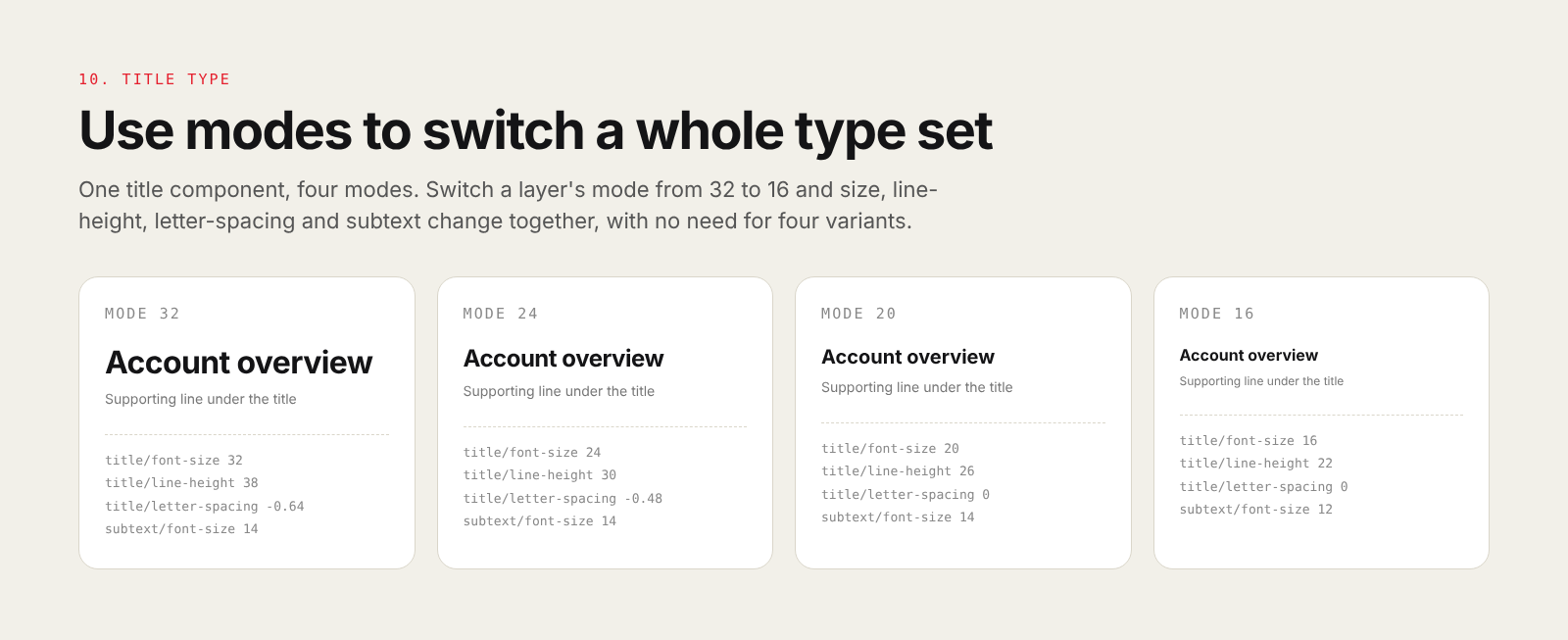
My favorite is the "Title Type" collection. It has four modes (32, 24, 20, 16), each pointing to a matching title size, line-height, letter-spacing and subtext size. One title component, and switching mode switches the whole set. No need for four variants, and no need to remember to adjust letter-spacing by hand.
String variables for display data
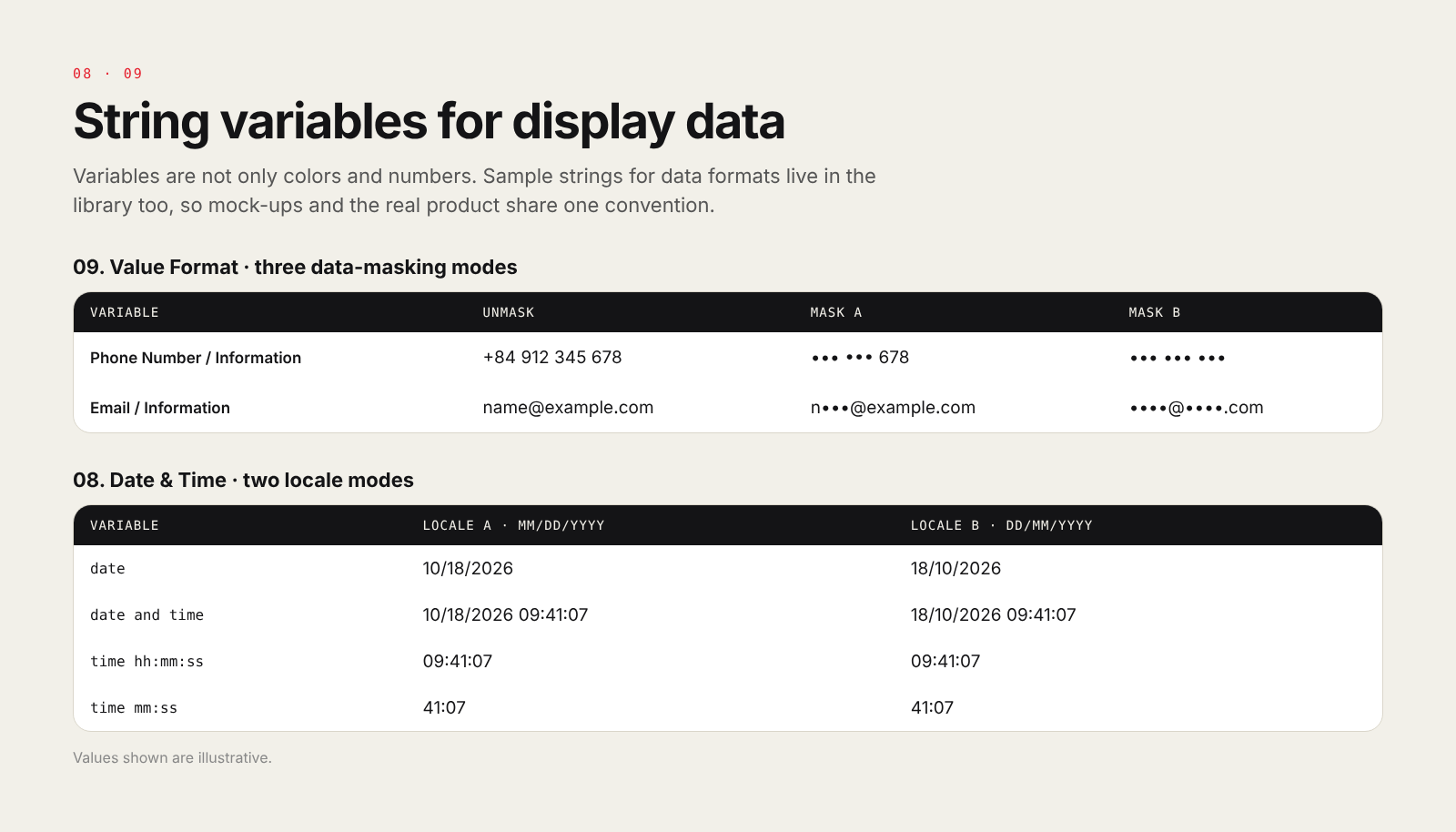
Variables come in four types: Color, Number, String and Boolean. I use String too. One collection stores sample strings for data formats such as phone numbers or emails, with three modes: fully shown and two masking styles. Another collection stores date and time formats in two locales. Every mock-up pulls its sample data from here, so the design and the real product follow the same convention and you never see a different date format on every screen.
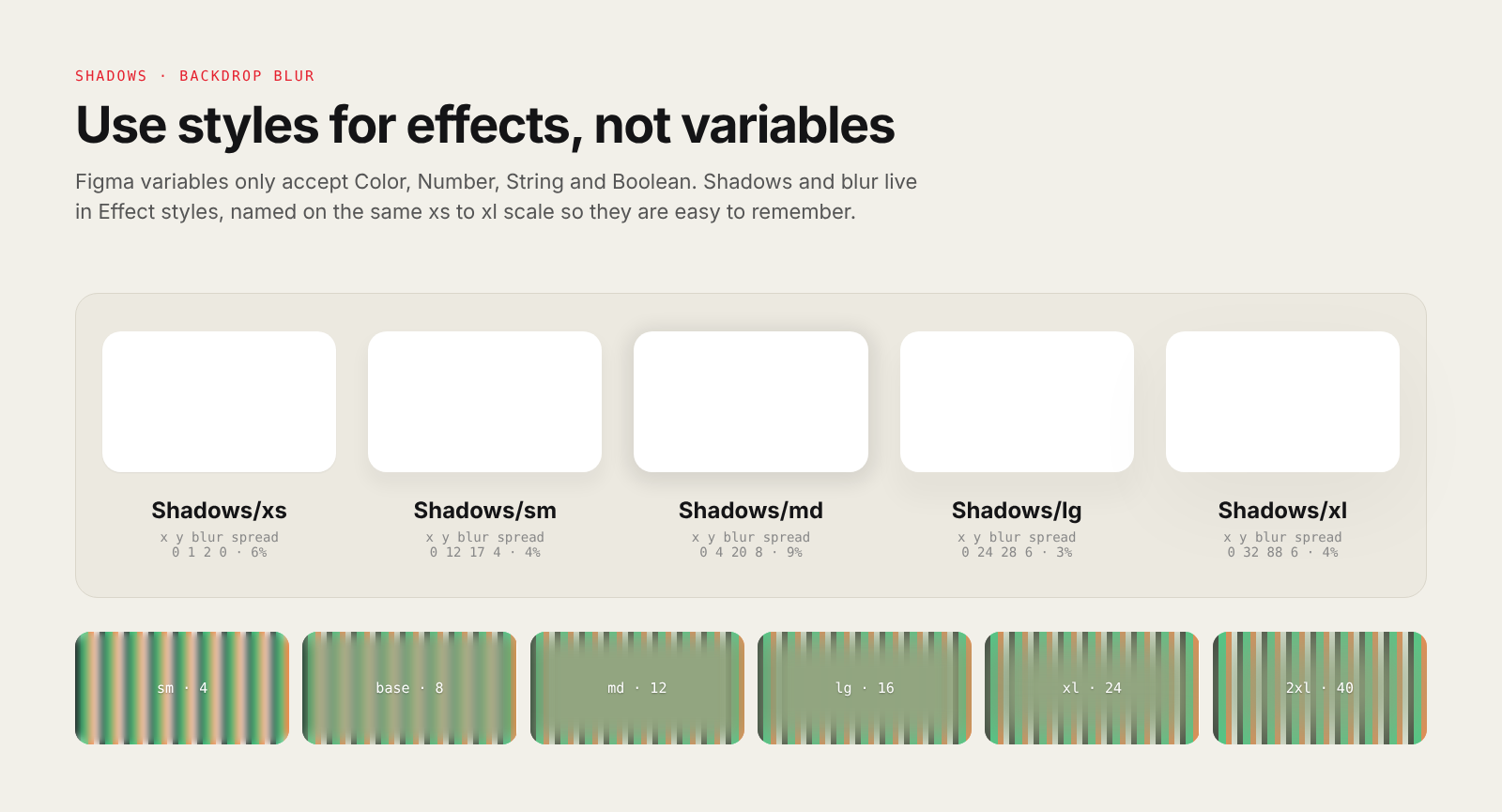
Use styles for shadows and blur
Variables cannot store effects yet, so shadows and blur stay in Effect styles. I name them on the same xs, sm, md, lg, xl scale so they are as easy to remember as the other scales. Shadows in this system are very light, with opacity only from 3 to 9 percent.
A checklist for managing variables
Once it is built, the hard part is keeping it from breaking over time. I use this list:
- Never bind primitives to components. Always go through a semantic token.
- Set a scope for every variable. Background variables should only appear when picking a fill, spacing variables only for gap and padding. The picker list gets noticeably shorter.
- Rename instead of deleting. Figma binds variables by ID, so renaming does not break links, while deleting a variable in use does.
- Check both modes whenever you add a token. A new token missing its Dark value is the easiest bug to miss.
- Scan for hand-applied colors. Select a whole frame, open Selection colors, and replace any color not bound to a variable with a token.
- Document changes. Each time you publish the library, write a few lines of notes so the team knows what just changed.
- Keep the reference chain short. Primitive, semantic, then stop. The more intermediate layers, the harder it is to trace back.
Conclusion
Variables do not make a design system good on their own. What makes the difference is convention: what each layer holds, how things are named and who can edit them. If you are just starting, do three things first: separate primitives from semantic tokens, name by role, and build Light and Dark from day one. The rest can be added gradually.
If you are building a design system and want to chat, just message me through the contact section!